This guide explains how to disable Real-time protection and Tamper Protection in Microsoft Defender Antivirus. Methods 1 and 2 use the built-in Windows Security app and are temporary. Method 3 uses the Defender Control tool for a persistent change.
Method 1: Disable Tamper Protection
This is the simplest and recommended way to disable Tamper Protection on a single device.
-
Open Windows Security
Open the
Startmenu, search forWindows Securityand open it. -
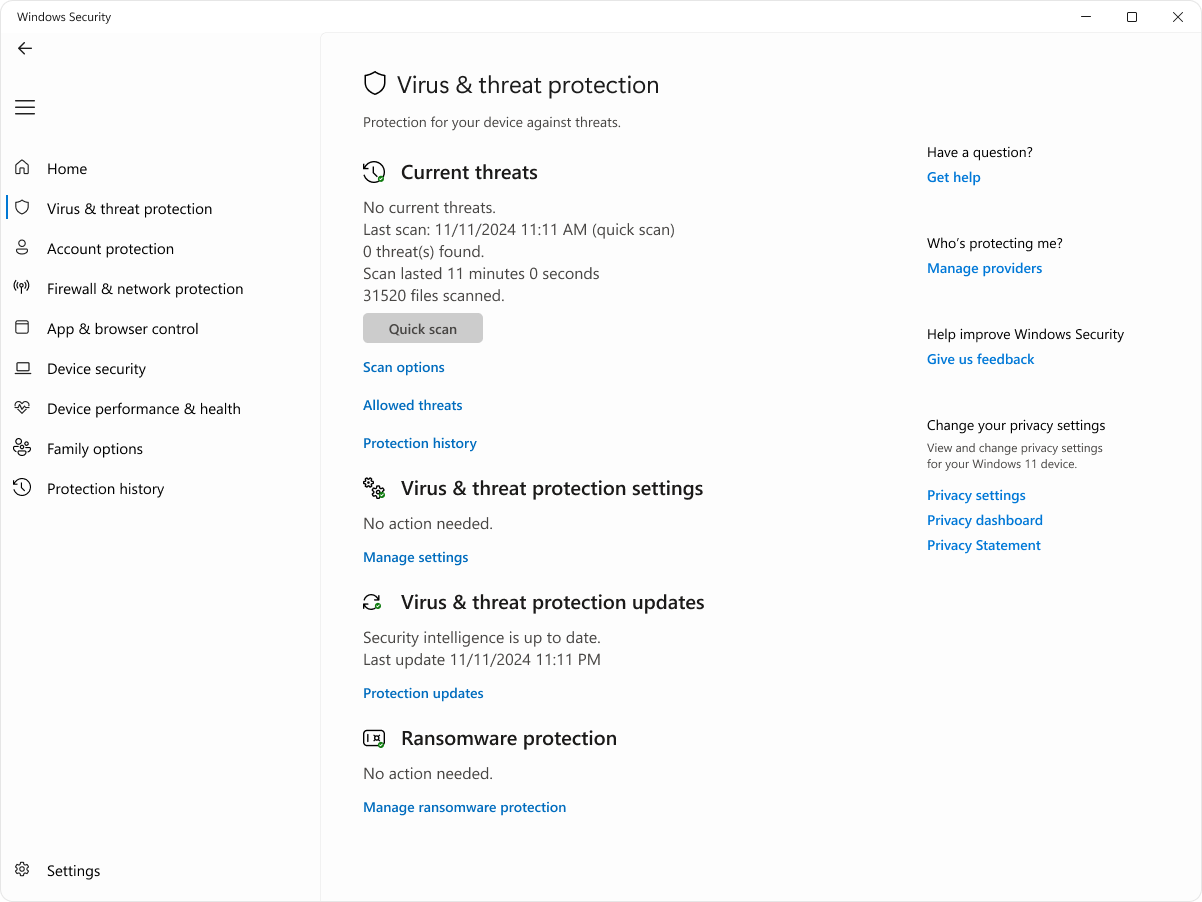
Open Virus & threat protection
In the Windows Security window, select Virus & threat protection.
-
Open the settings
Under
Virus & threat protection settings, click Manage settings. -
Turn off Tamper Protection
Locate Tamper Protection and set the toggle to
Off.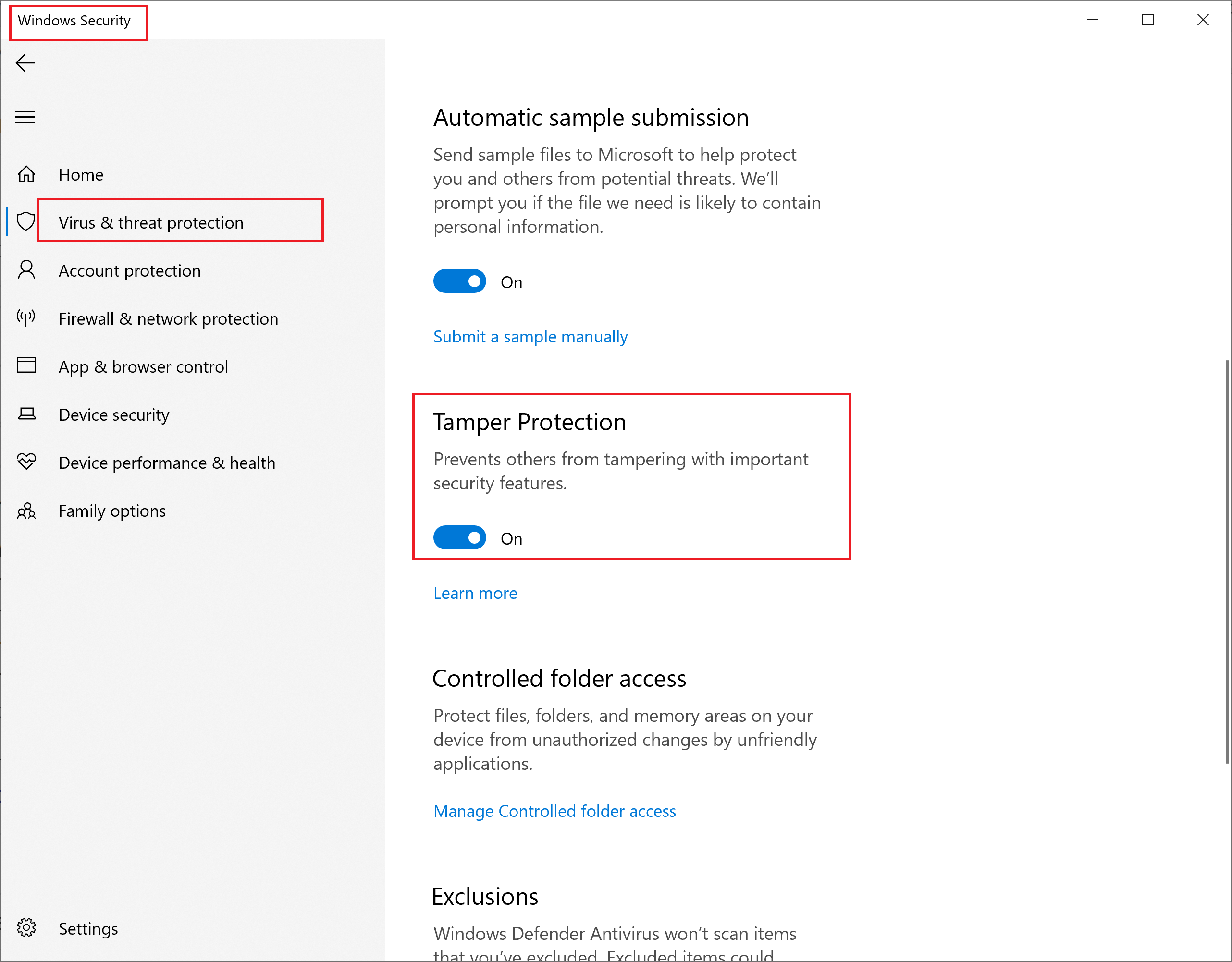
Method 2: Disable Real-time protection (temporary)
This is the most direct way to disable Real-time protection for a short time.
-
Disable Tamper Protection first
Follow Method 1 if you have not done so yet.
-
Open Virus & threat protection
Open the Windows Security app and go to Virus & threat protection.
-
Open the settings
Click Manage settings.
-
Turn off Real-time protection
Locate Real-time protection and set the toggle to
Off.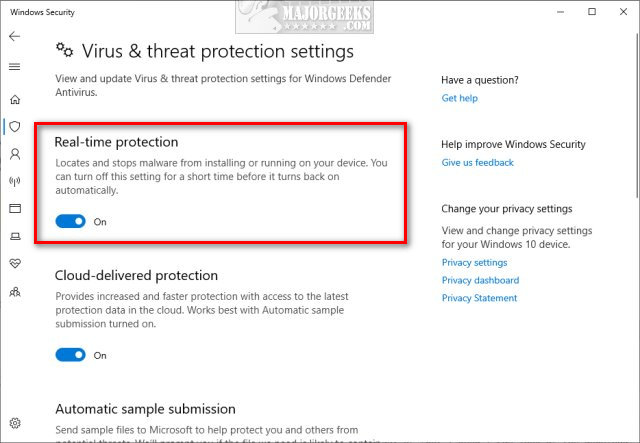
Note: This is a temporary change. Windows may re-enable Real-time protection on its own after a short period or after a restart.
Method 3: Disable Windows Defender with Defender Control
If you need a persistent and simple way to turn Windows Defender off, use Defender Control by Sordum. It is a portable tool that enables or disables Windows Defender with a single click.
Download Defender Control
-
Go to Sordum.org
Download the tool from the official Sordum.org website.
-
Expect a false-positive warning
Because the tool changes security settings, your browser and Windows Defender itself will most likely flag it as malicious. This is a false positive.
Unblock the download in Chrome
If Chrome blocks the download, use one of the two options below.
Option A: Keep the file directly (recommended)
-
Open the Downloads list
Press
Ctrl + J. -
Find the blocked download
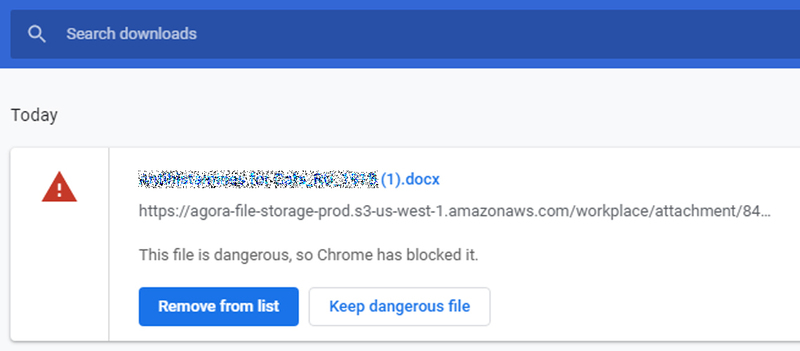
The blocked file is listed with a warning message.
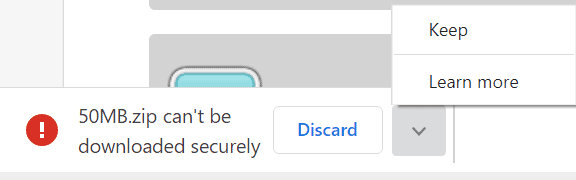
-
Keep the file
Click Keep dangerous file to save the file to your computer.
Option B: Temporarily disable Safe Browsing
Use this only if the Keep dangerous file option is not available.
-
Open Chrome settings
Click the three-dot menu in the top-right corner of Chrome and select Settings.
-
Open the Security page
Go to
Privacy and security → Security. -
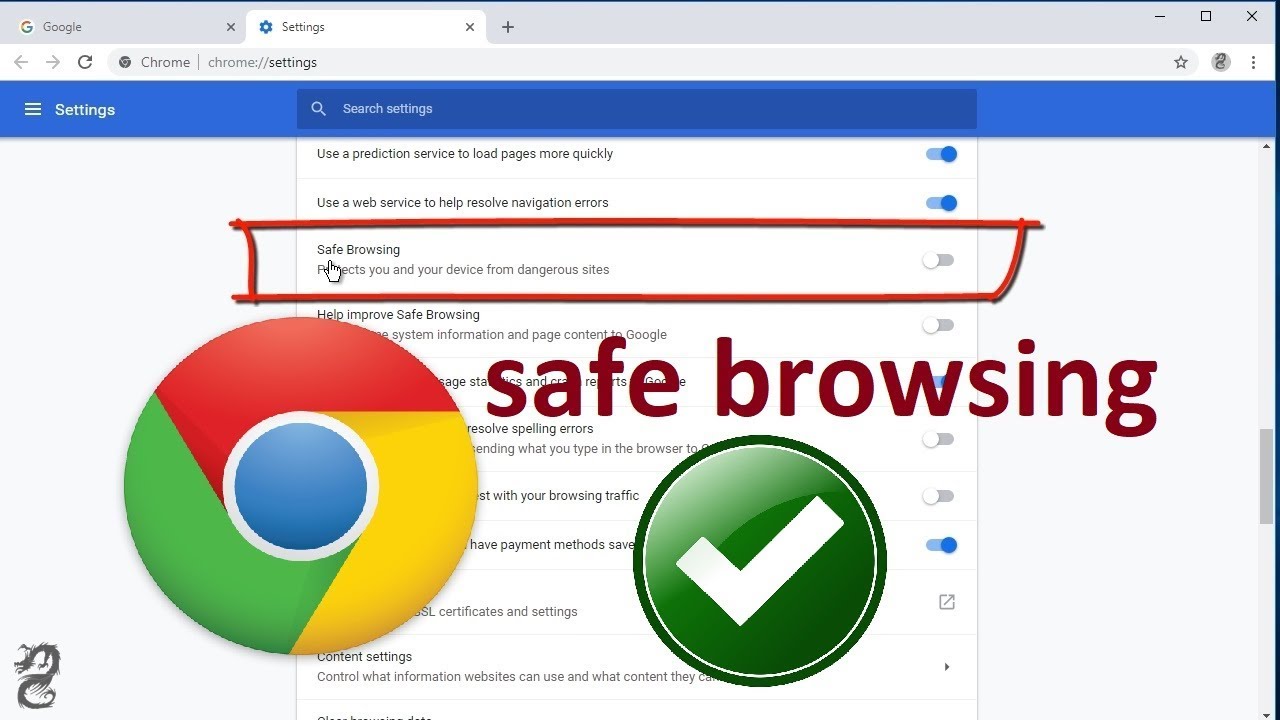
Turn off Safe Browsing
Under
Safe Browsing, select No protection (not recommended).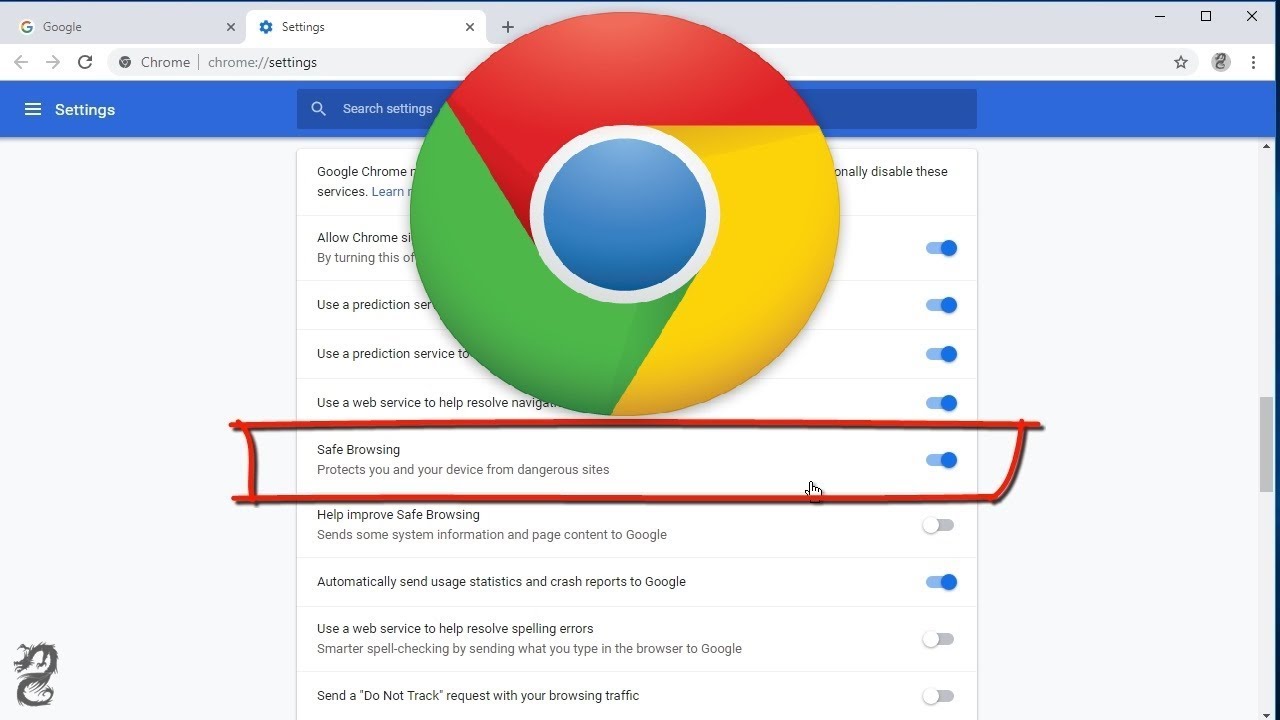
-
Confirm
When asked to confirm, click Turn off.
-
Download the tool again
Retry the Defender Control download.
-
Re-enable Safe Browsing
Once the download has finished, go back to the same page and select Standard protection or Enhanced protection.
Important: Do not leave Safe Browsing disabled. Turn it back on as soon as the download is complete.
Use Defender Control
-
Extract the archive
The download is a ZIP archive. Extract it using the password
sordum. -
Disable Defender protections first
Turn off Tamper Protection and Real-time protection with Methods 1 and 2 before running the tool. Otherwise Defender will most likely delete the executable.
-
Run the tool
Run
dControl.exe. -
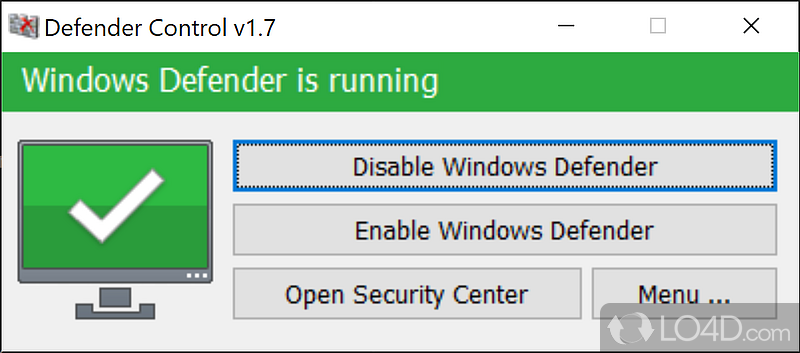
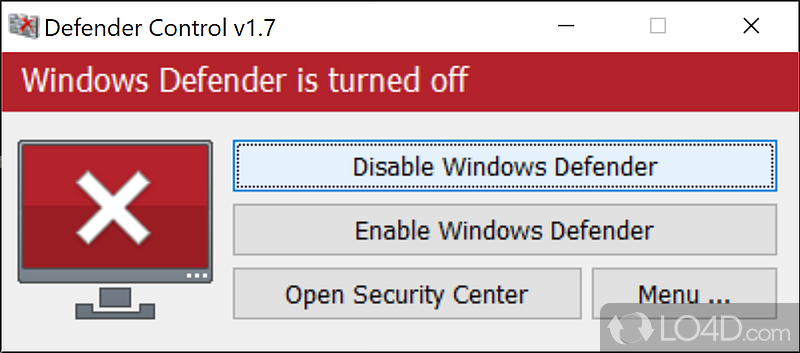
Check the current status
The interface shows whether Windows Defender is currently enabled.
-
Disable Windows Defender
Click Disable Windows Defender. The interface turns red to show that Windows Defender is now off.
-
Add the tool to the exclusions list
Go to
Menu → Add it to the Exclusions List. This stops Defender from flagging the tool in the future.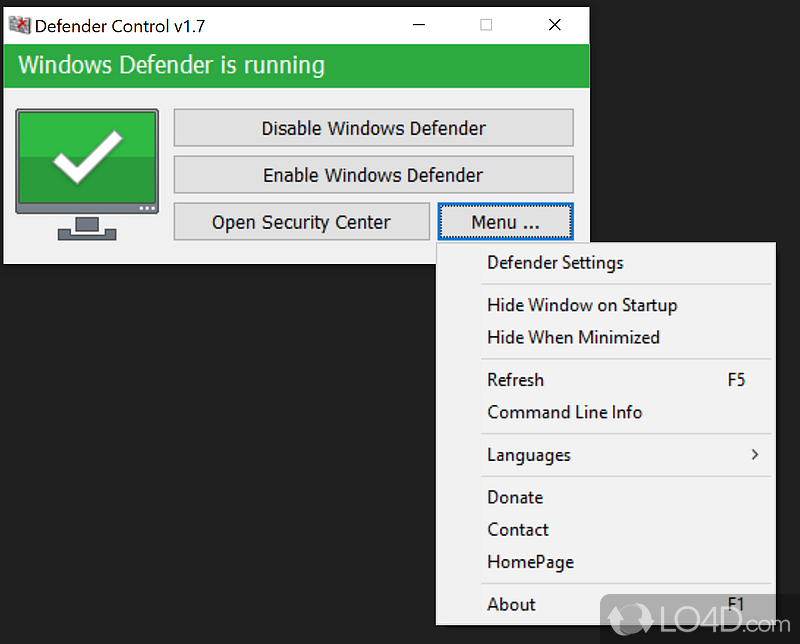
Tip: To turn Windows Defender back on, open Defender Control again and click Enable Windows Defender.