Hardware-accelerated GPU scheduling can improve performance, but it can also cause issues with certain drivers or games. The steps are the same on Windows 10 and Windows 11.
-
Open Display settings
Right-click the desktop and select
Display settings. -
Open Graphics
Scroll down and click
Graphics. -
Open the default graphics settings
Click
Change default graphics settings. -
Turn off Hardware-accelerated GPU scheduling
Set the
Hardware-accelerated GPU schedulingtoggle toOff.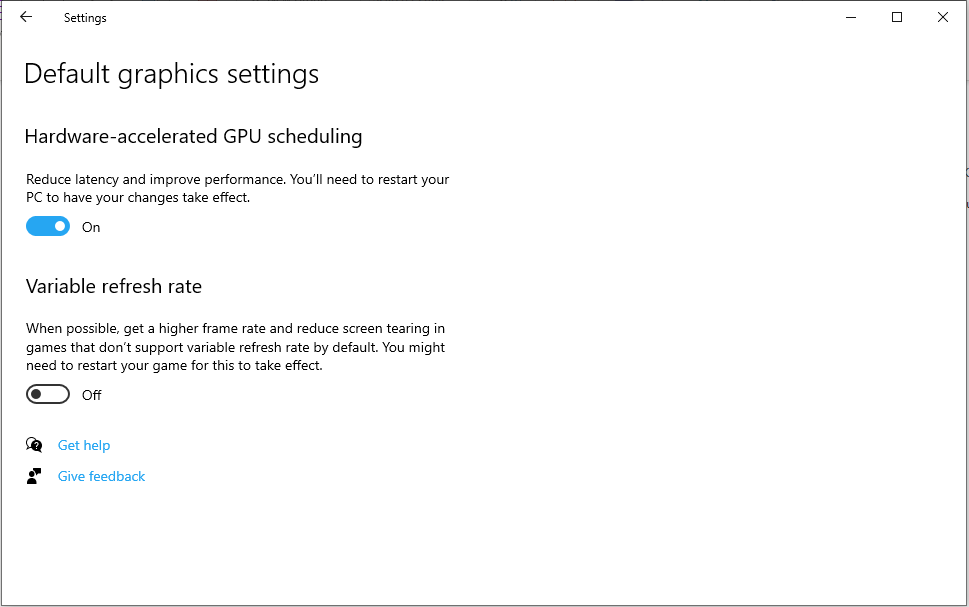
-
Restart your computer
The change only takes effect after a restart.